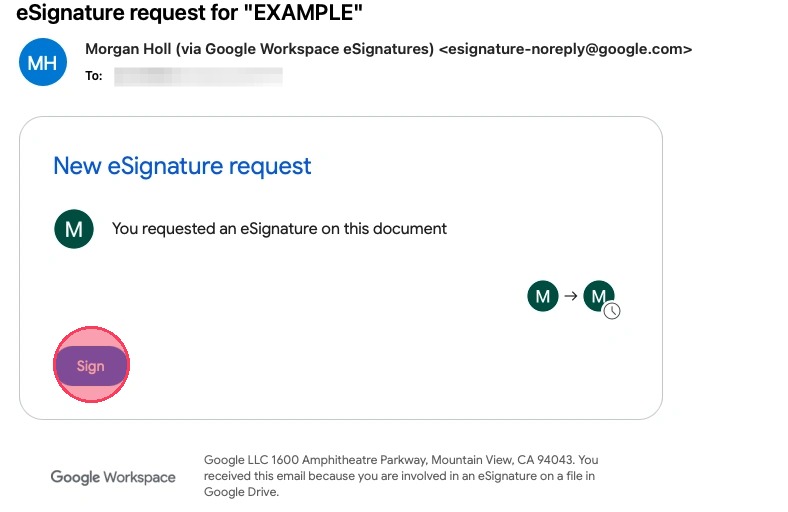
1. Check your email for the eSignature request (don't forget to check your spam/junk folder too!). Click the blue "Sign" button.
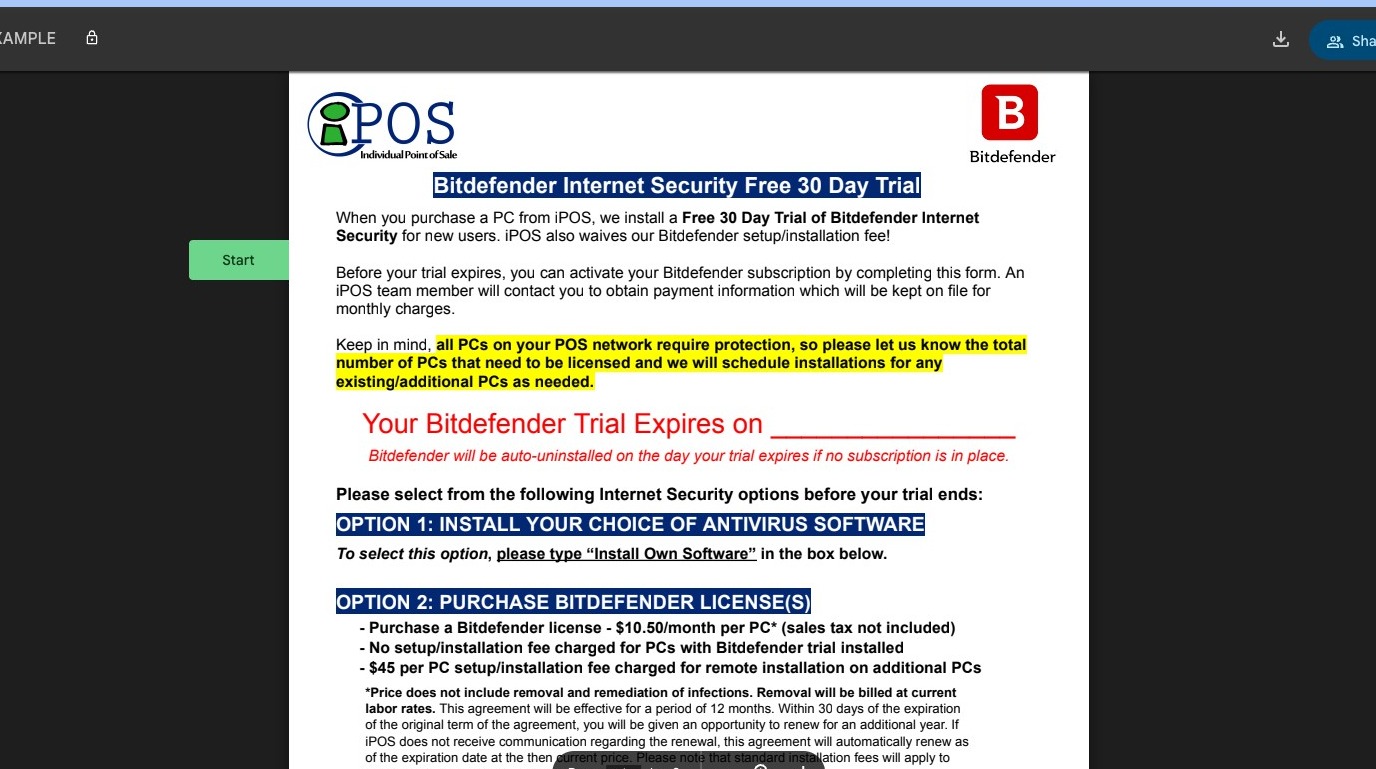
2. The document will open automatically in your web browser.
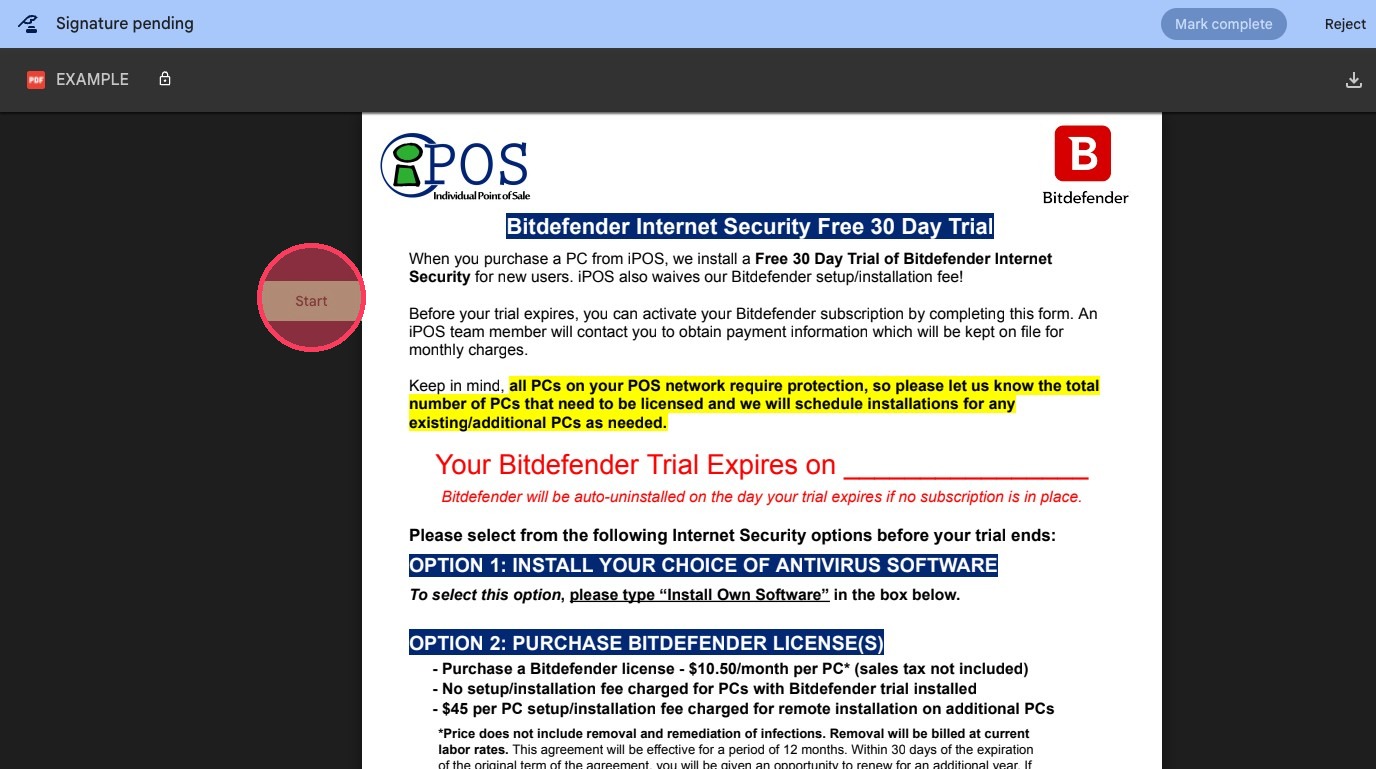
3. Click "Start"
4. Enter your information as applicable. Click "Next" or tab on the keyboard to move to the next field.
TIP! All fields may be required - to properly complete the form, you will need to enter text in those fields such as "N/A".
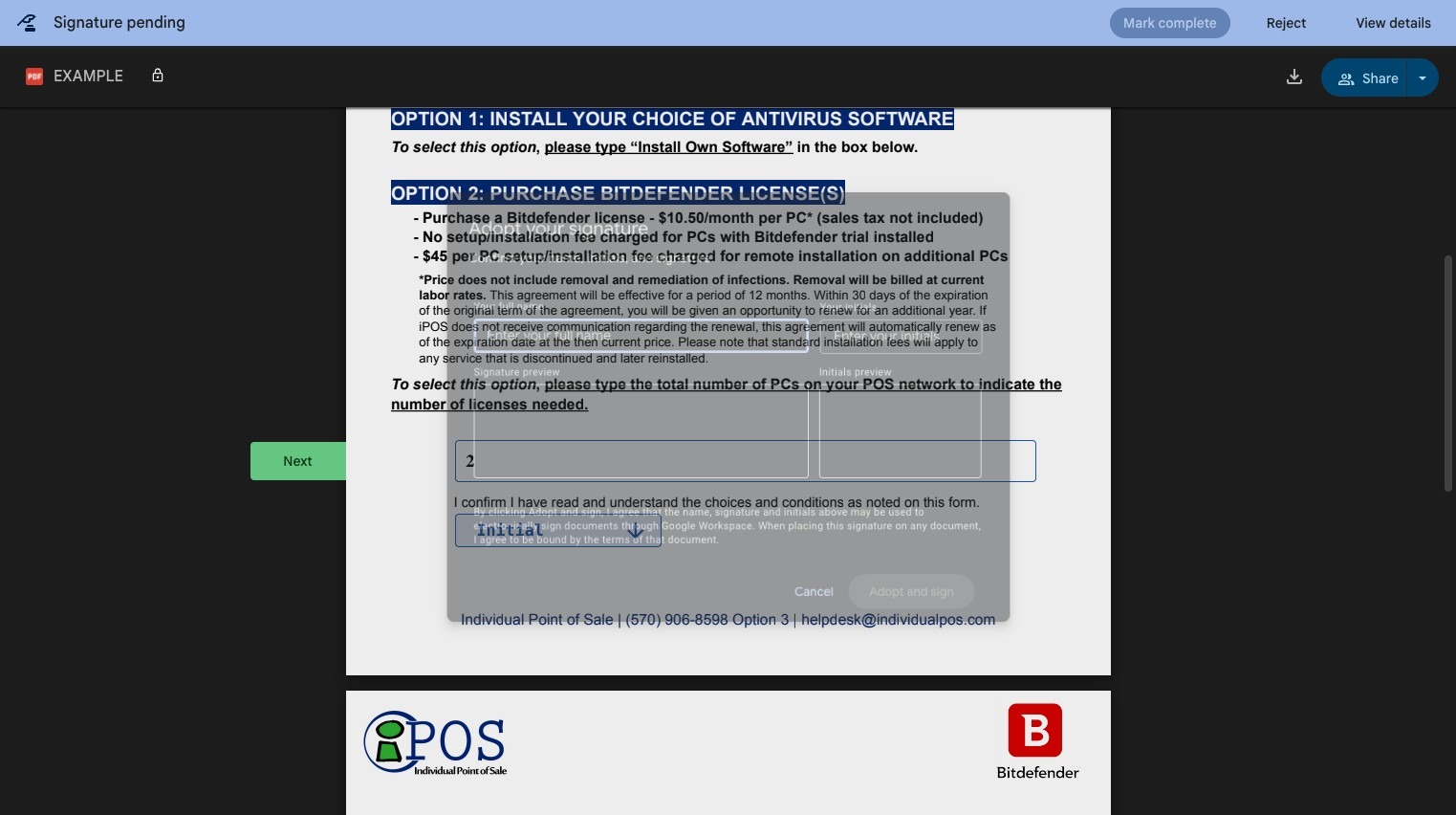
5. Click "Initial"
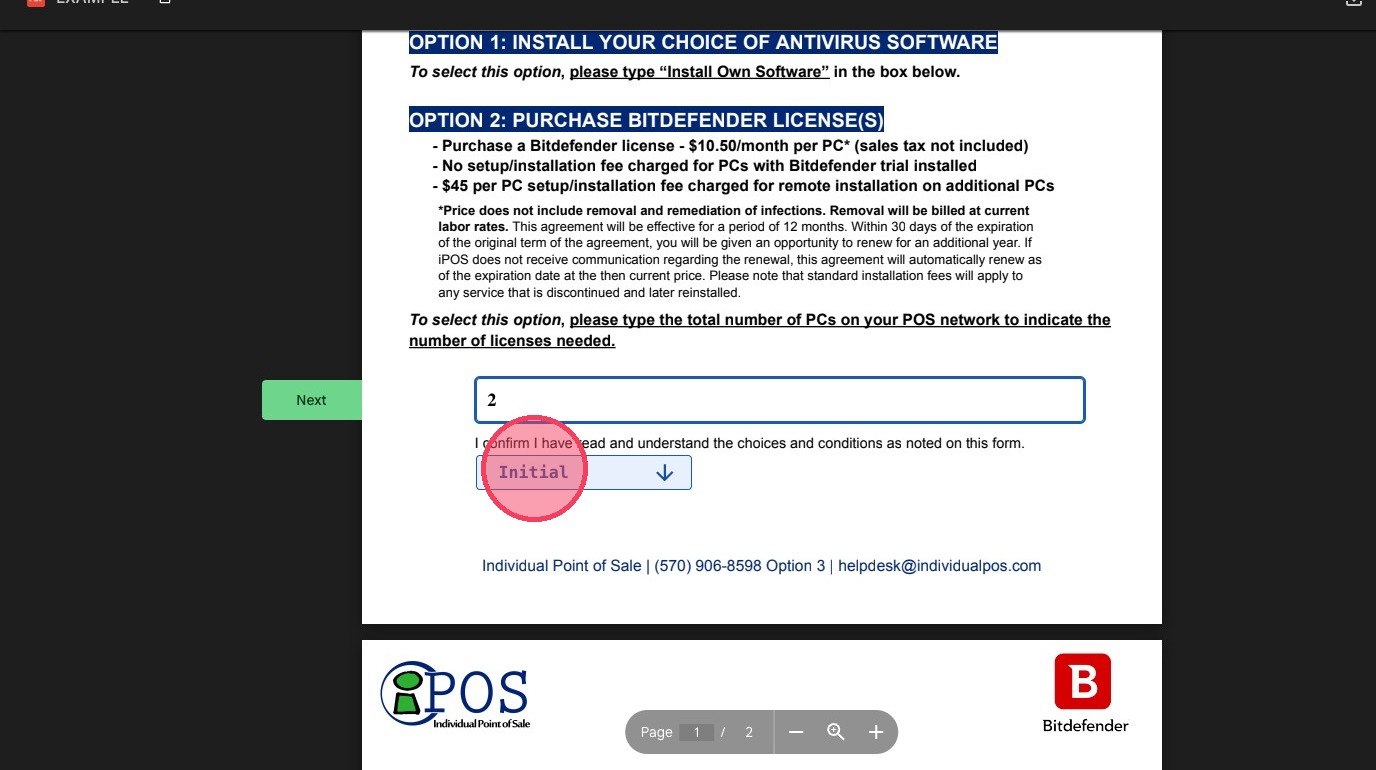
6. Type your name and initials to adopt your electronic signature.
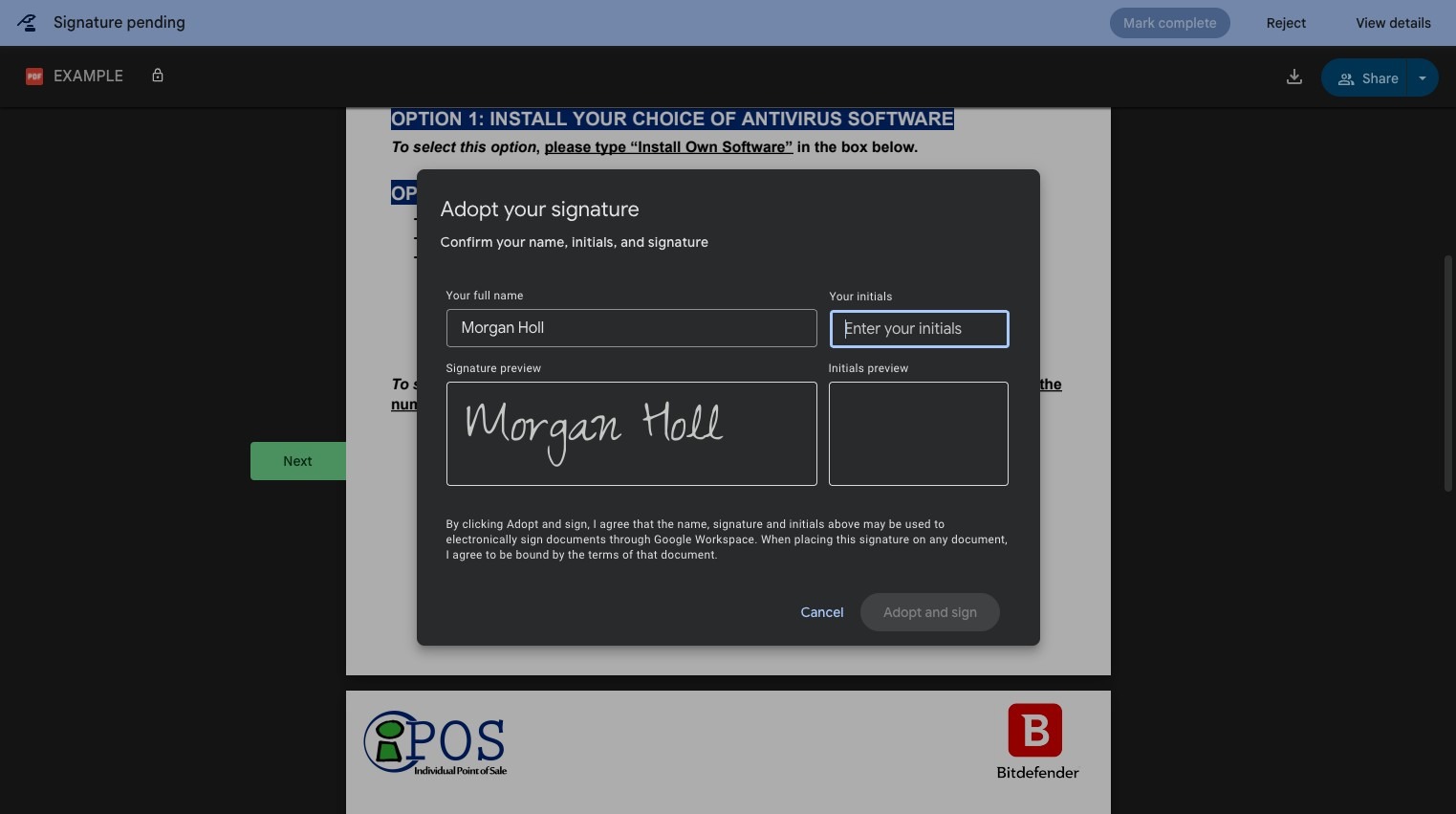
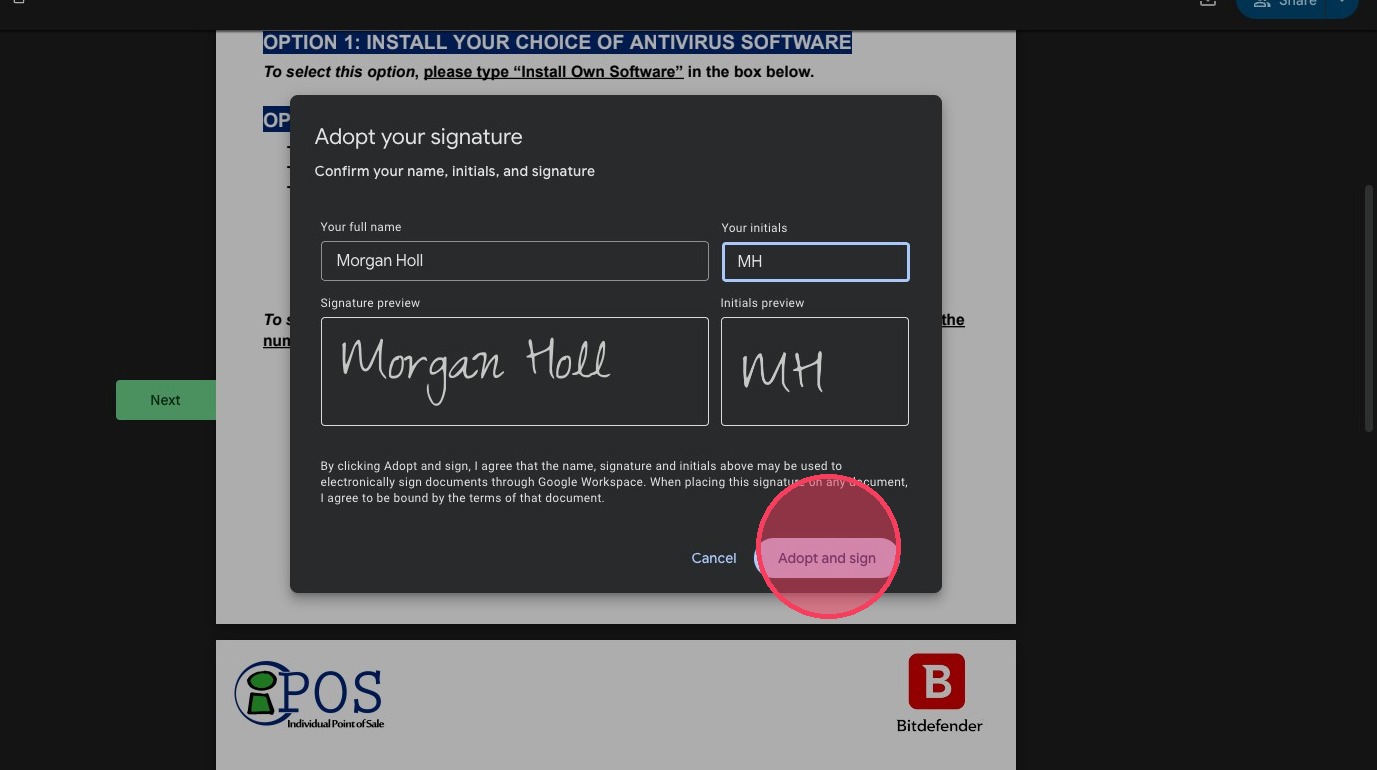
7. Click "Adopt and sign"
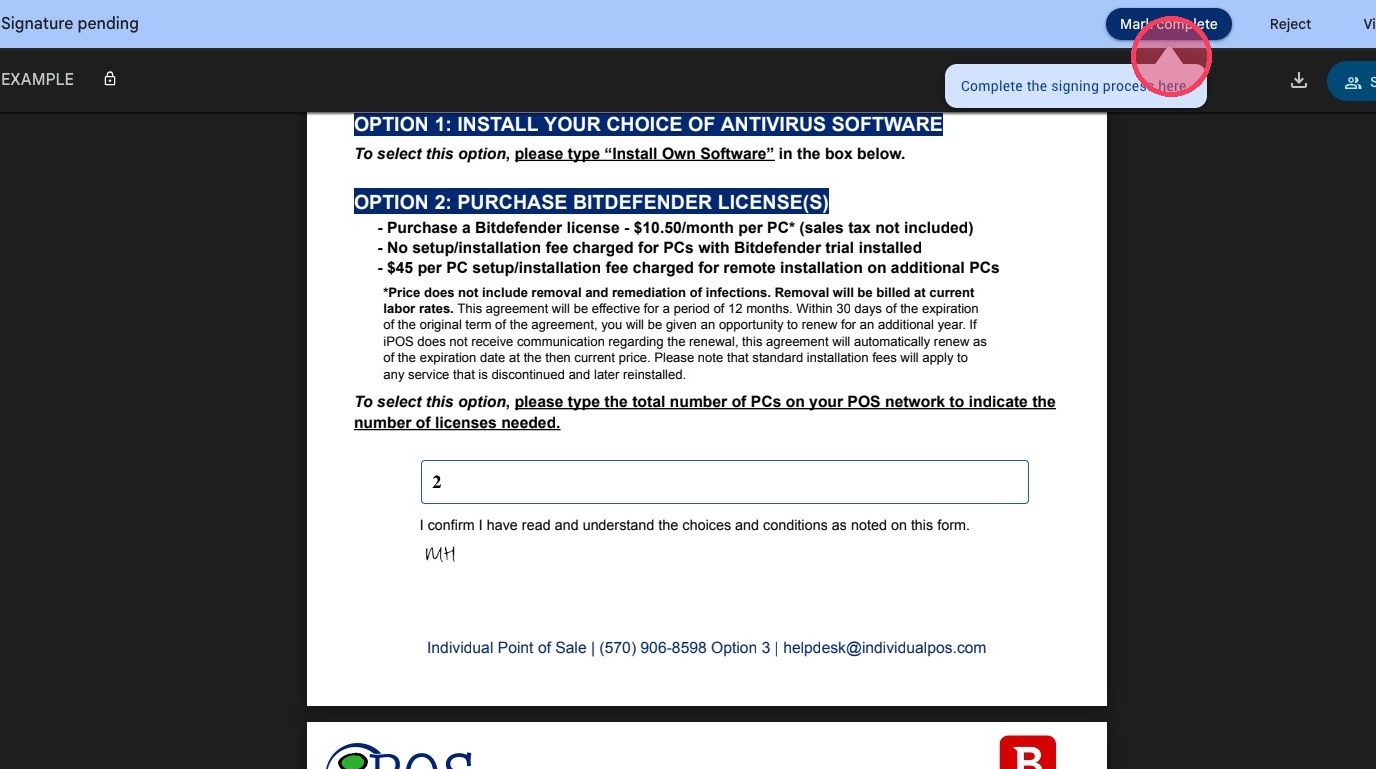
8. When all fields are filled in, click "Mark complete"
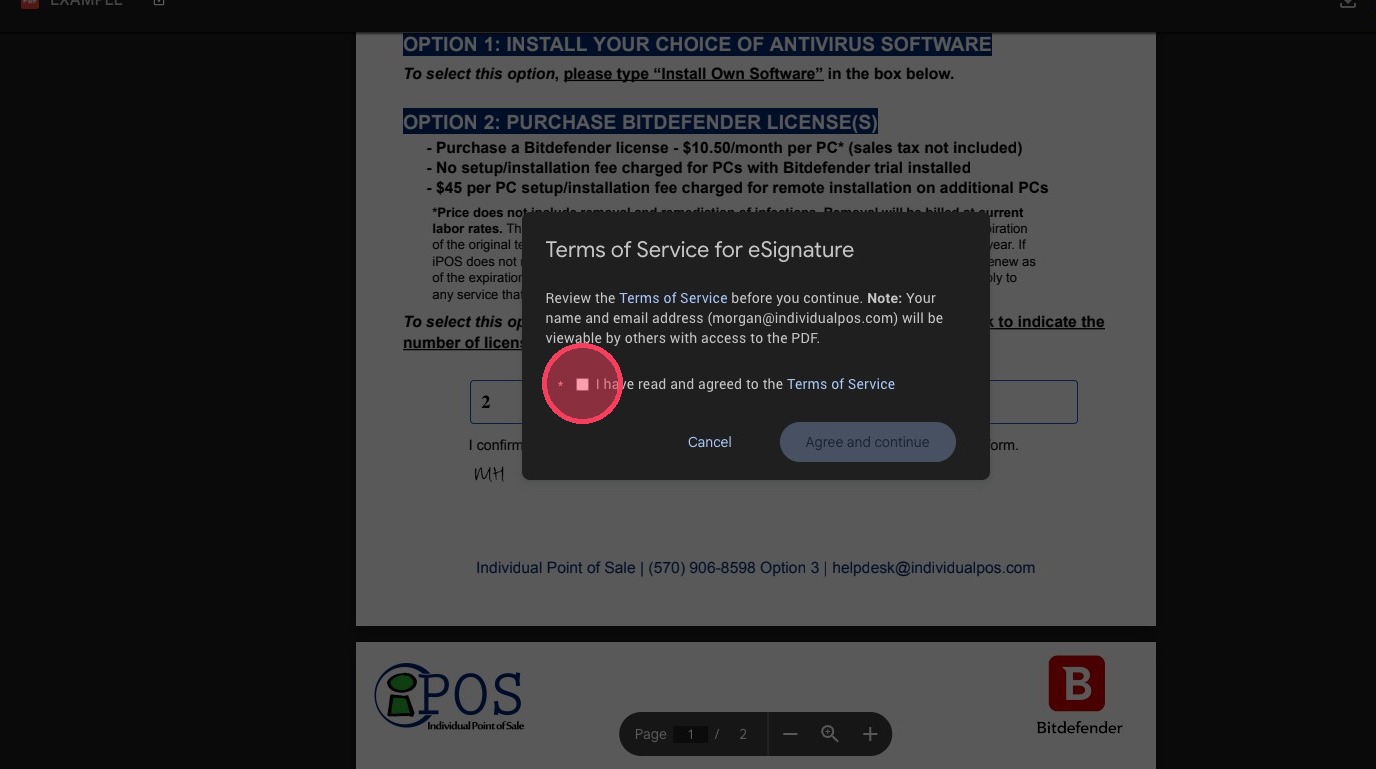
9. Check the box "I have read and agreed to the Terms of Service"
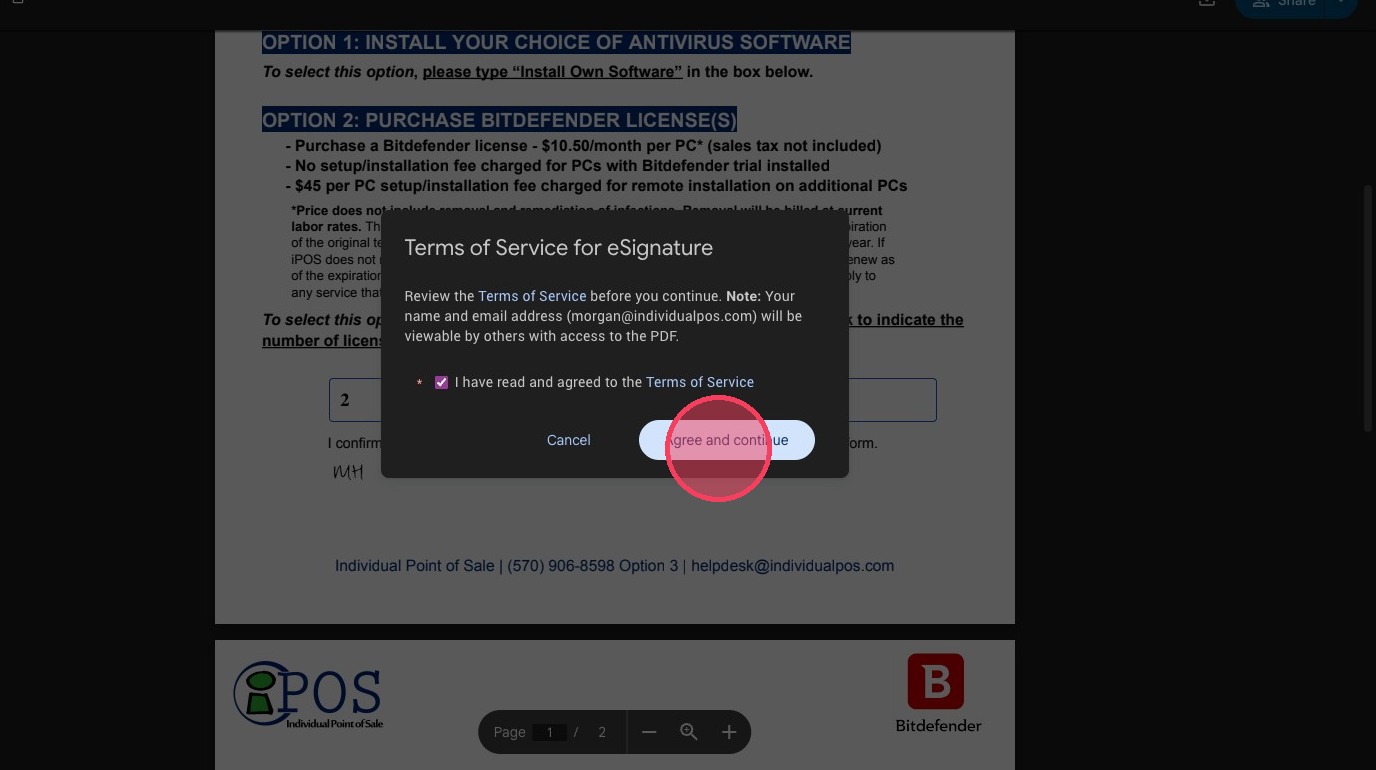
10. Click "Agree and continue"
11. Click "Close the window"
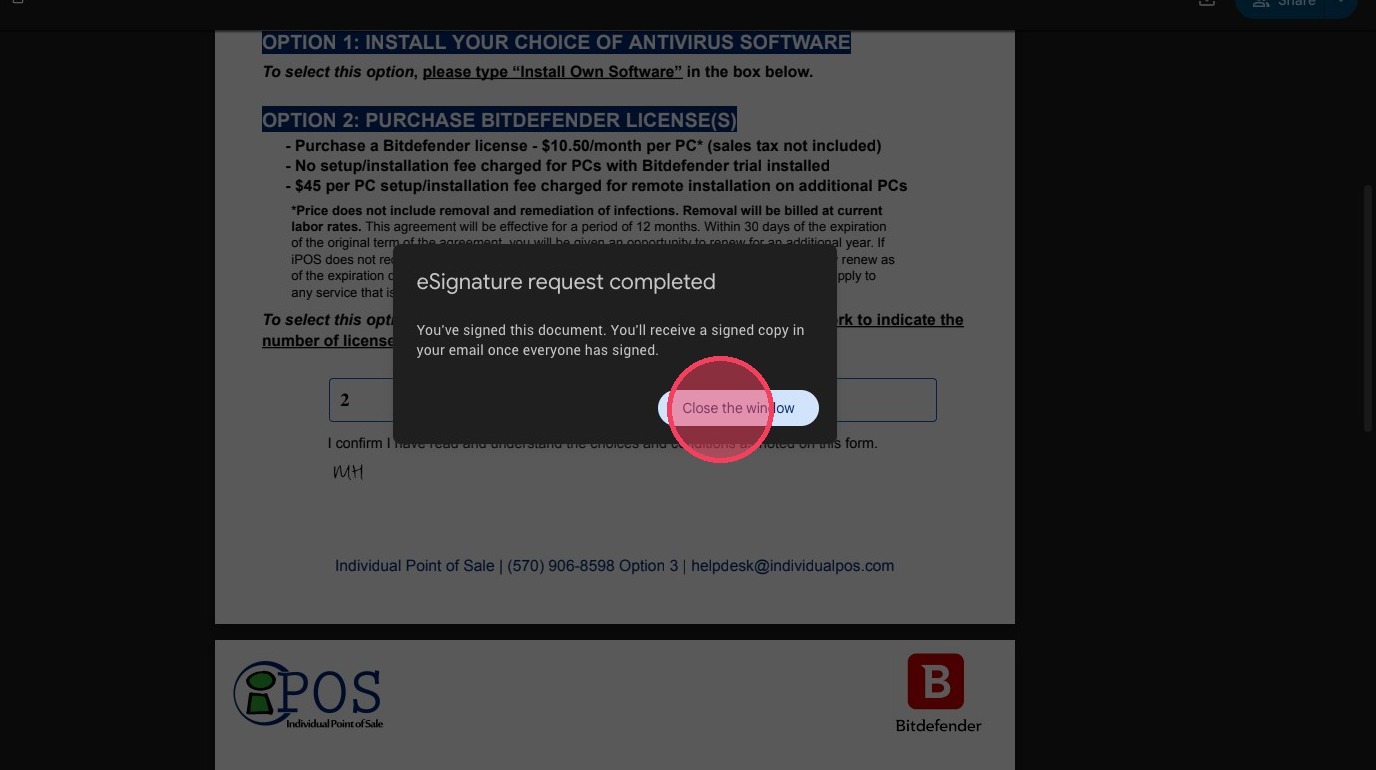
12. iPOS and the end user will receive a completed and signed PDF!
Questions or Issues? Contact iPOS Support!
Call: (570) 906-8598 Option 3
Email: helpdesk@individualpos.com
Comments
0 comments
Article is closed for comments.