This article outlines how to connect a scanner rented from iPOS that has not been sent to you previously configured for use with a personal iPad.
Please note, if you have rented an iPad bundle with a scanner from iPOS, you will not need to perform these steps as the bluetooth scanner is already paired to the iPad and will simply need to be turned on.
-
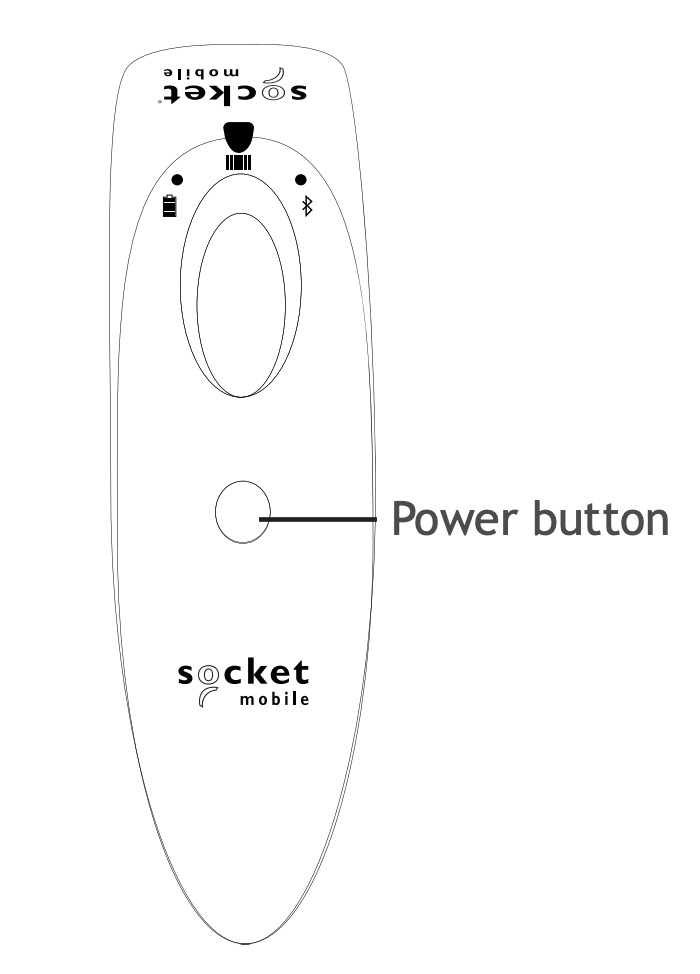
Turn on the rented barcode scanner from iPOS by pressing and holding the power button. The scanner's battery light will turn on, its Bluetooth light will blink quickly, and the scanner will beep twice.
- On your iPad, tap "Settings" and then tap "Bluetooth".
-
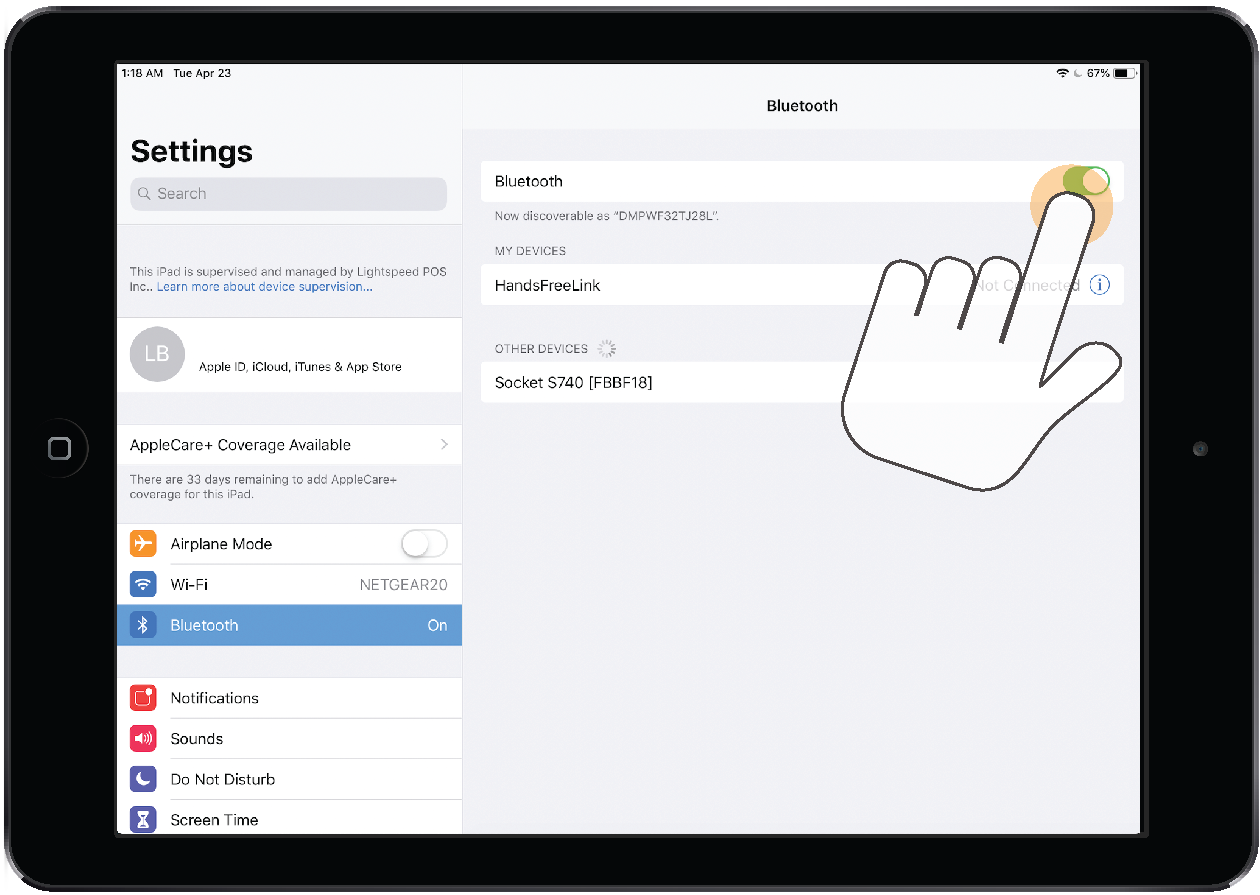
In the "Bluetooth" panel, enable the "Bluetooth" toggle.
-
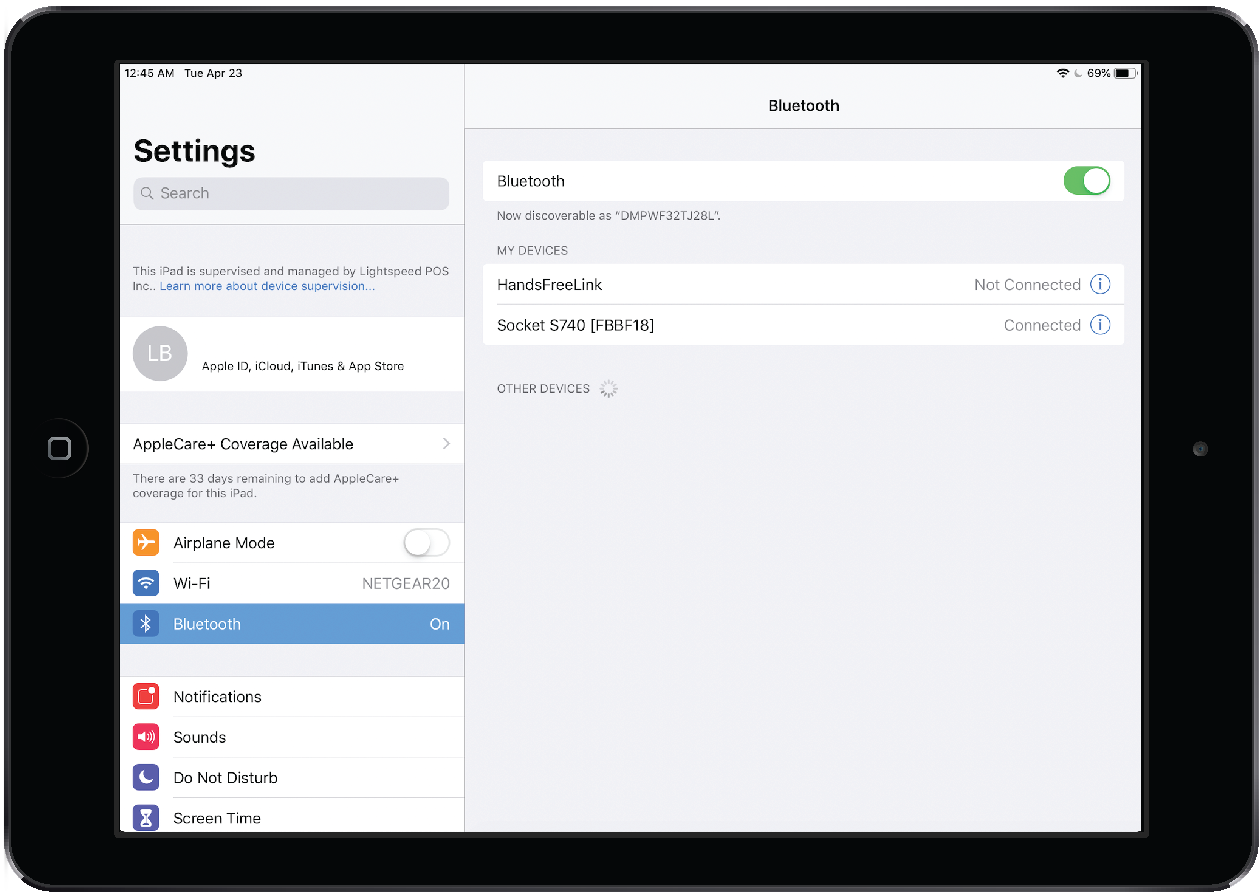
Under "Other Devices", tap the barcode scanner that was rented from iPOS. Once the pairing process is complete, the barcode scanner that was rented from iPOS is displayed as "Connected" under "My Devices". The Bluetooth light will turn solid.
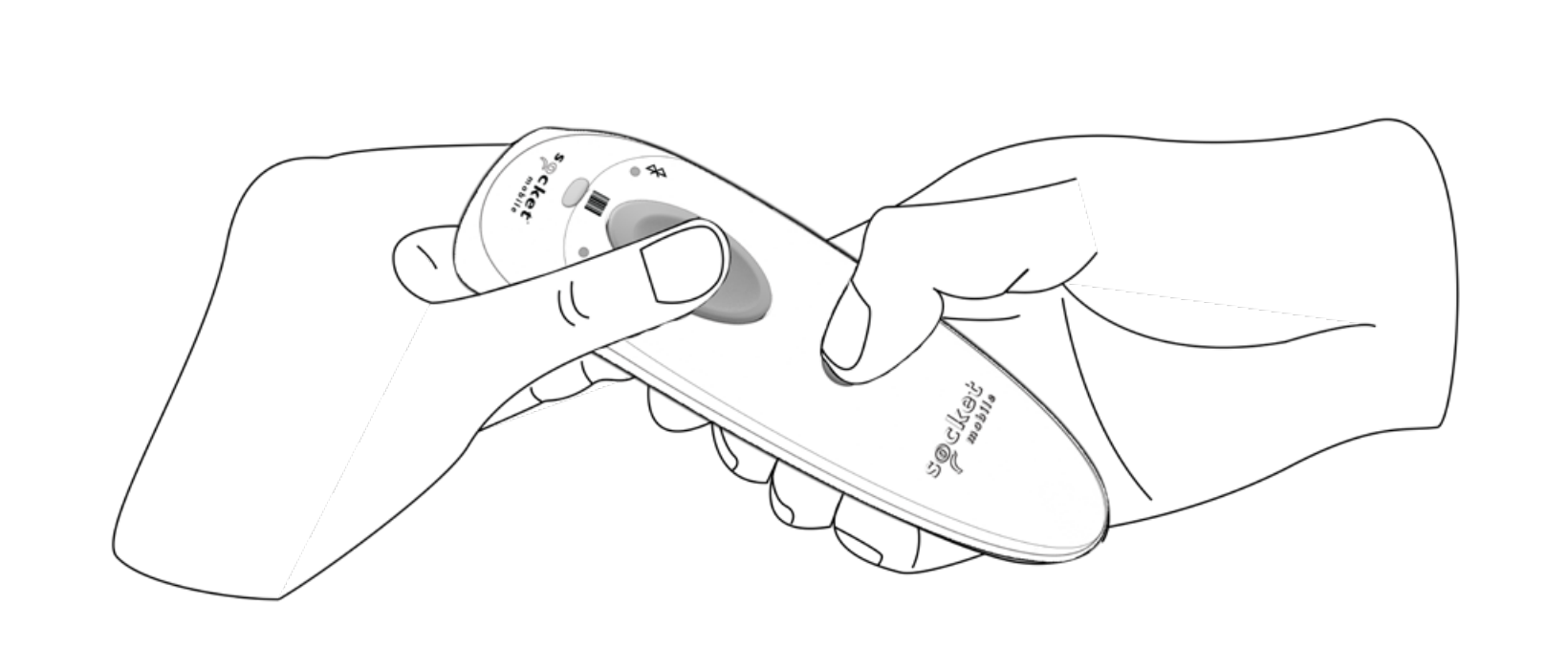
Note: If you've paired the wrong barcode scanner, press and hold the Scan button followed by the Power button. The scanner will power off. Power the scanner on and its Bluetooth will blink quickly if the scanner is discoverable.
If you're having issues pairing your barcode scanner with your iPad, try turning your iPad's Bluetooth switch off and back on. If you're still having issues, perform a factory reset.
Related Content:
Lightspeed R-Series Inventory Count
Installing the Retail POS App (R-Series)
Configure a New Socket Mobile Scanner for LightSpeed R-Series Retail POS App on an iPad
Comments
0 comments
Article is closed for comments.