This article is separated into three sections listed below.
Fully Charge the Barcode Scanner
-
Connect the power pin end of the Charging Connector to the Power Connector on the right-hand side of the barcode scanner.
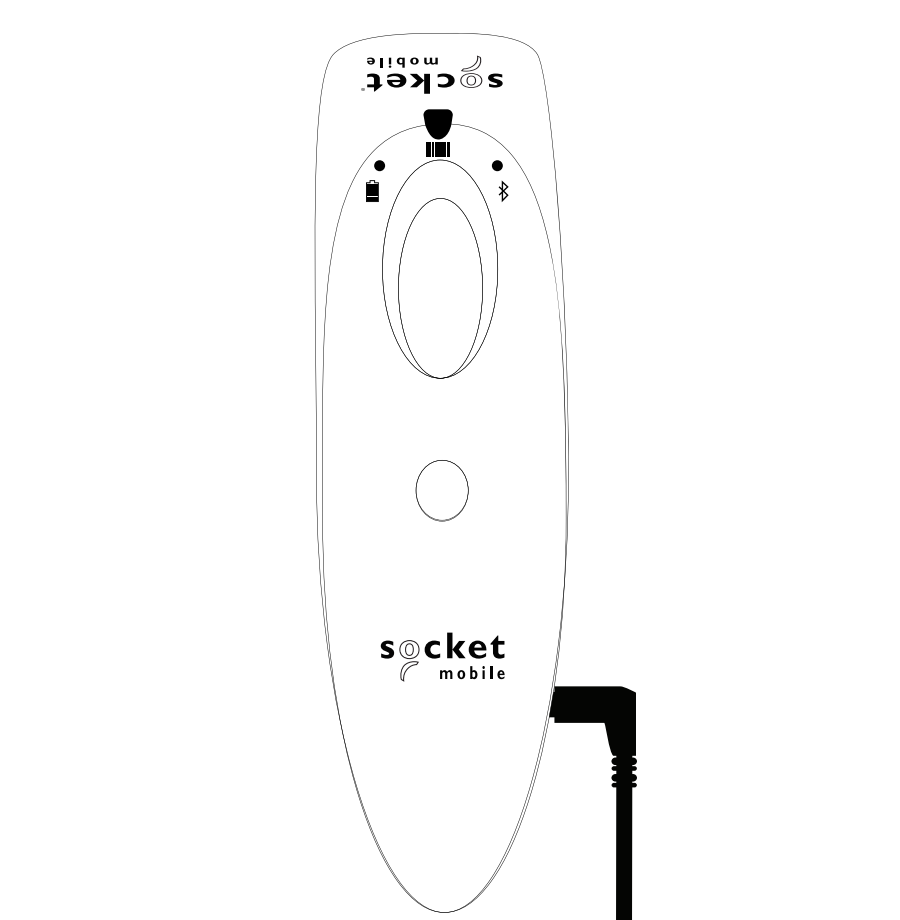
-
Connect the USB end of the Charging Connector to an AC Power Supply. Connecting to a computer's USB port is not recommended.
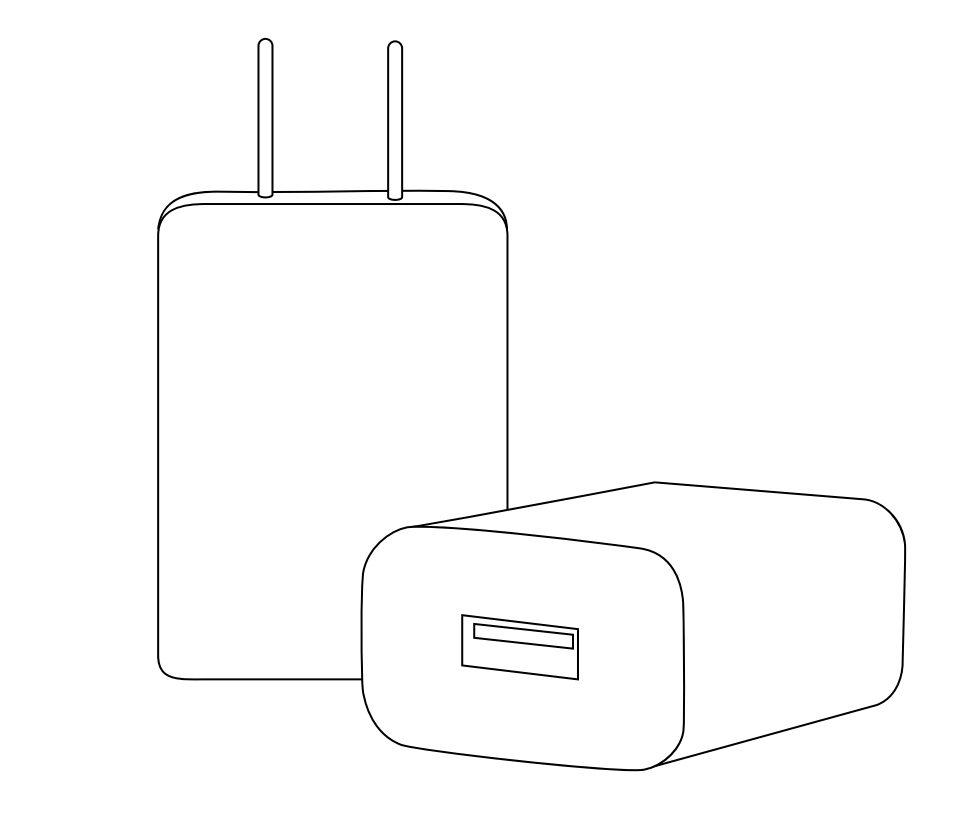
- Connect the AC Power Supply to a power outlet.
To indicate that the barcode scanner is charging, the scanner's battery light turns amber. Once the scanner is fully charged, the battery light will turn green.
For more information on the SocketScan 700 Series and the DuraScan Series barcode scanners, view Socket Mobile's User Guides listed below:
- SocketScan S700 Series User Guide
- SocketScan S720 Series User Guide
- SocketScan S730 Series User Guide
- SocketScan S740 Series User Guide
- DuraScan D700 User Guide
- DuraScan D730 User Guide
- DuraScan D740 User Guide
Pair Your Barcode Scanner With Your iPad
-
Turn on your barcode scanner by pressing and holding the power button. The scanner's battery light will turn on, its Bluetooth light will blink quickly, and the scanner will beep twice.
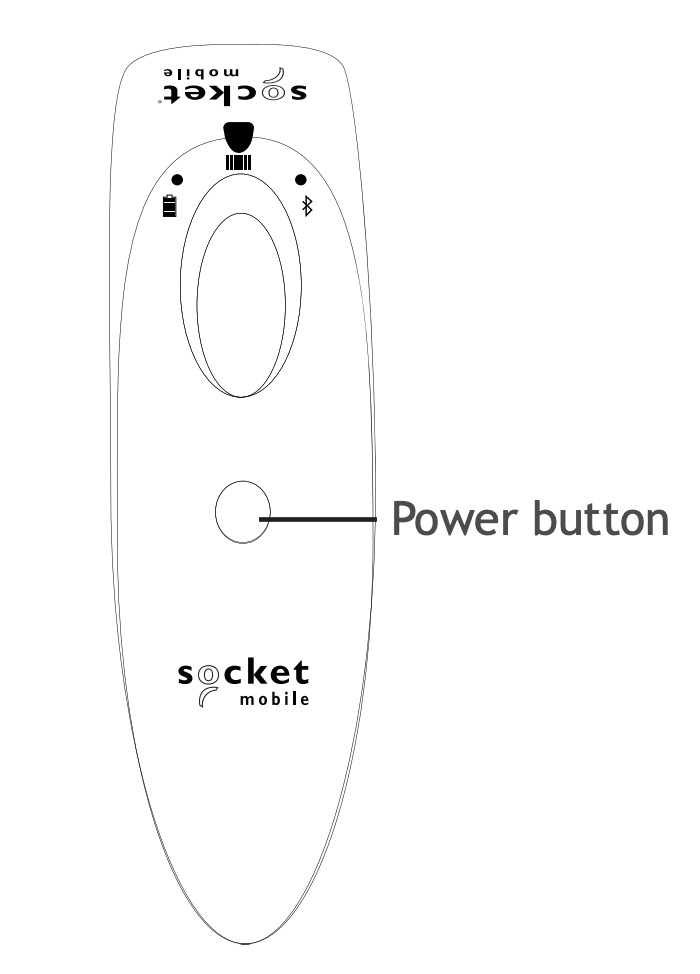
-
By default, your barcode scanner is set to Basic Mode. To use your barcode scanner and keyboard at the same time in the Retail POS app, you need to set the scanner to Application Mode. To do so, scan the following barcode. The scanner will beep three times to indicate that it has changed modes.
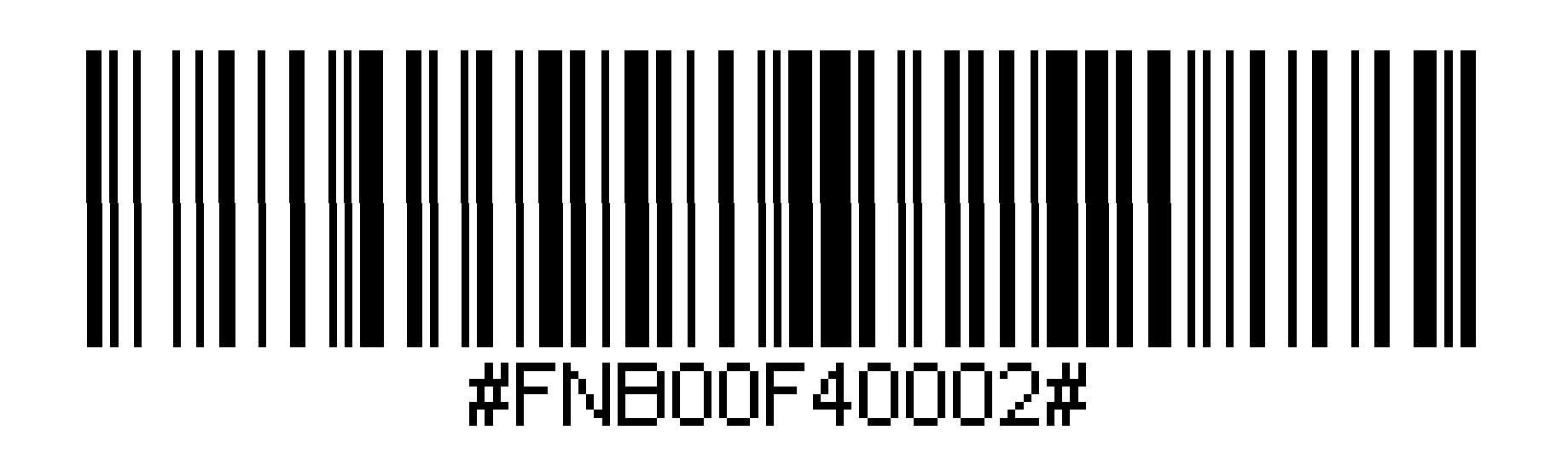 Note: If scanning the barcode from your screen doesn't work, you can also print and scan the barcode. If you do print the barcode, confirm that it doesn't stretch during the printing process, as this will make it unscannable. The barcode is also listed in Socket Mobile's User Guide.
 - On your iPad, tap "Settings" and then tap "Bluetooth".
-
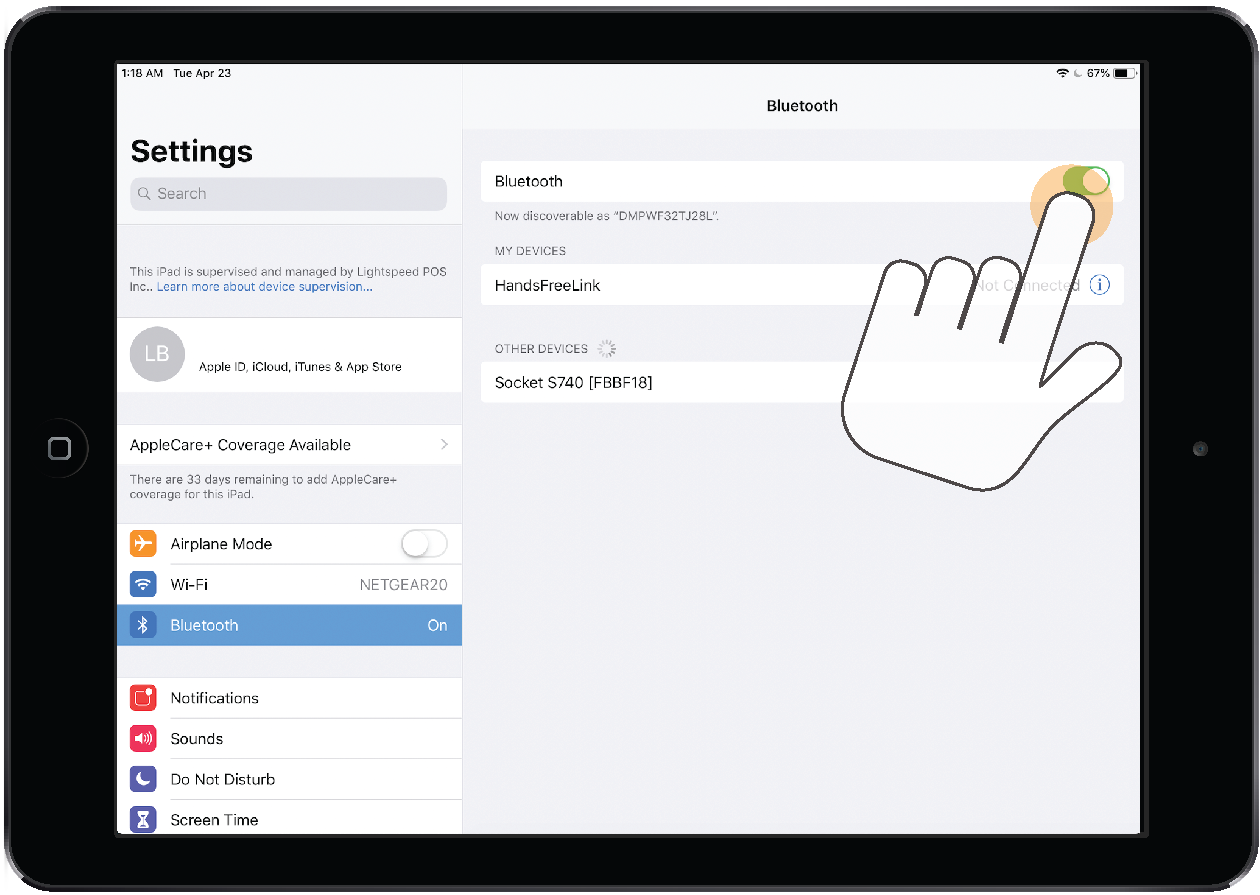
In the "Bluetooth" panel, enable the "Bluetooth" toggle.
-
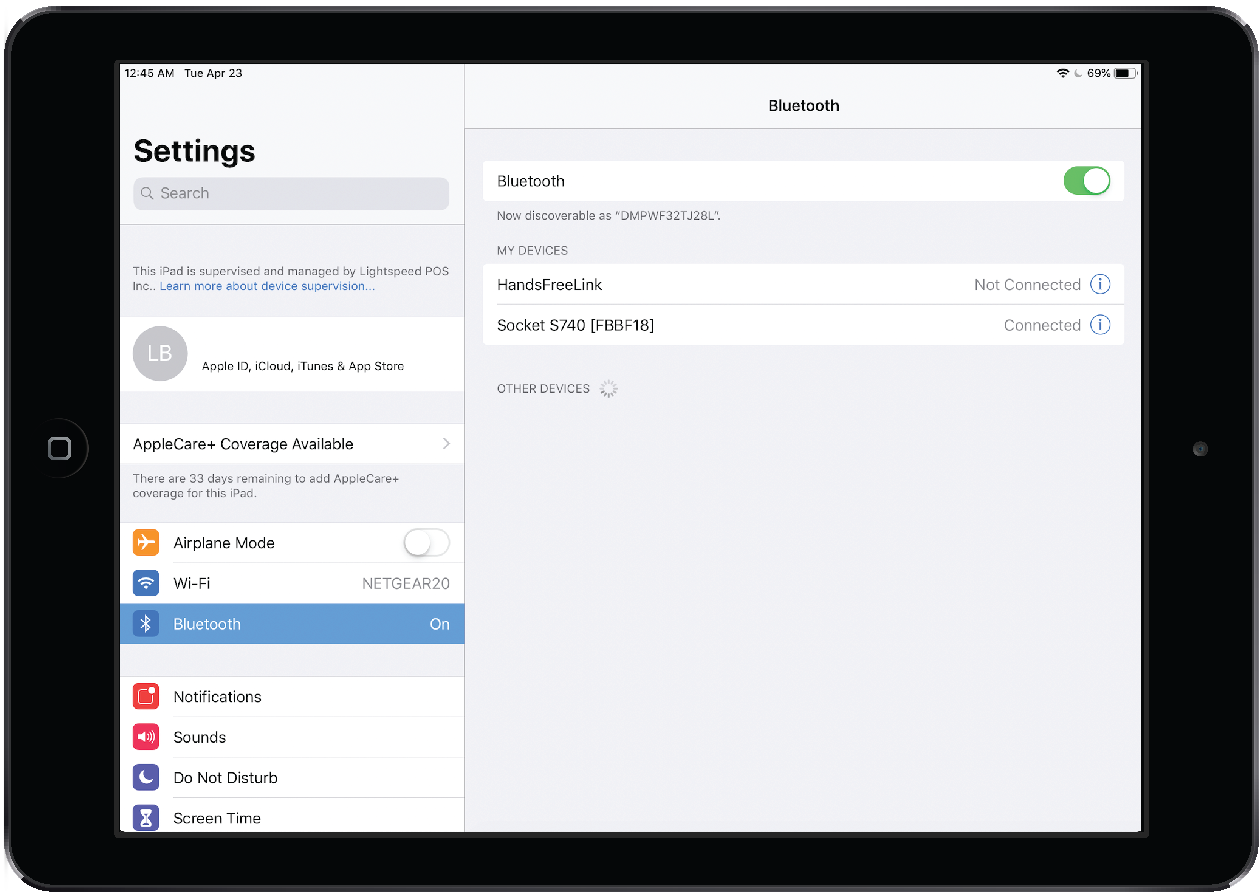
Under "Other Devices", tap your "barcode scanner". Once the pairing process is complete, your barcode scanner is displayed as "Connected" under "My Devices". The Bluetooth light will turn solid.
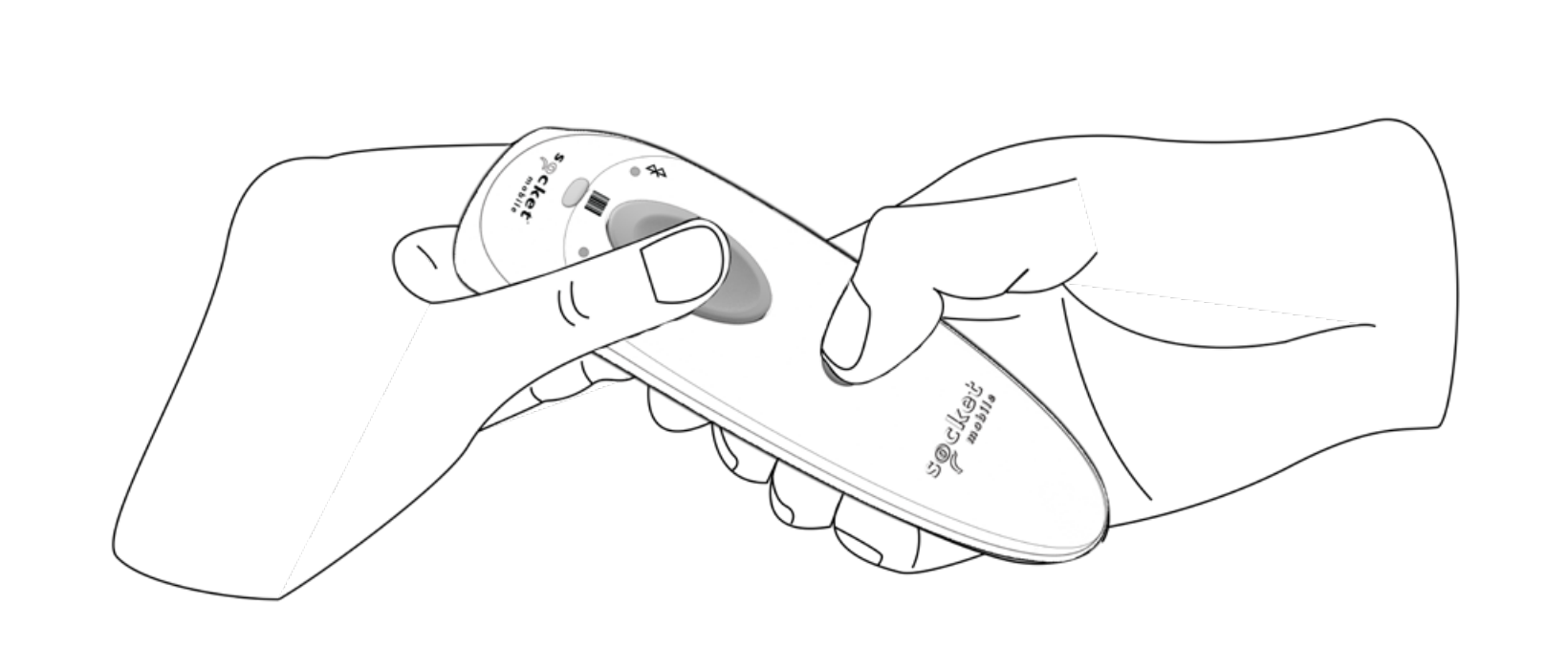
Note: If you've paired the wrong barcode scanner, press and hold the Scan button followed by the Power button. The scanner will power off. Power the scanner on and its Bluetooth will blink quickly if the scanner is discoverable.
If you're having issues pairing your barcode scanner with your iPad, try turning your iPad's Bluetooth switch off and back on. If you're still having issues, perform a factory reset.
Test Your Barcode Scanner
Now that your barcode scanner is paired to your iPad, test it by scanning an item in the Lightspeed Retail R Series POS app:
- Open the Lightspeed Retail R Series POS app. Your barcode scanner will display as connected at the top of the screen. It'll also be listed on the "Profile" screen under "Devices".
- On the "Profile" screen, tap "New Sale".
-
Scan an item that you have in your inventory.
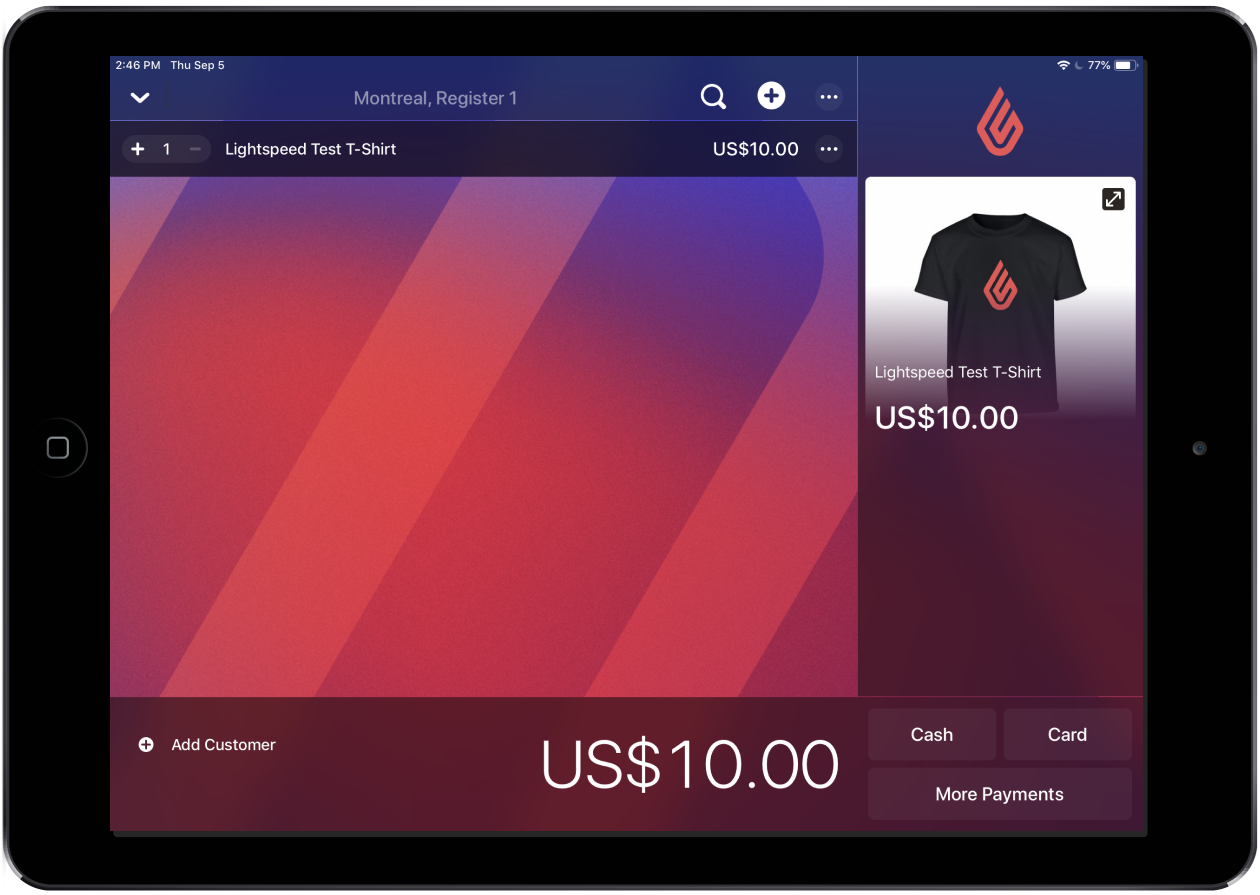 Note: If you don't have an item in your inventory, you can quickly create one by tapping "+ > Create New Item". Then, enter a default price, scan the item's barcode into one of the IDs fields and tap "Create". To confirm your barcode scanner is working, scan the item again after creating it.
You can now scan items with your barcode scanner.
Related Content:
Comments
0 comments
Article is closed for comments.